Hear the missing word. Notice the sentence that runs too long. Use Word’s built-in Read Aloud, or open a DOCX in CastReader to review it with a voice you choose, synchronized highlighting and help with difficult passages.
Real CastReader captures · Mac + iPhone reading examples.
A focused reading session
How to start with CastReader
Open your file
Hear the words
Follow along
Explore an idea
01
Save a DOCX copy
Save or download your Word document as .docx. If you have an older .doc file, use Word’s Save As option to create a DOCX copy first. Keep the editable original for making changes.
02
Open it in CastReader
Choose the file in the web document reader or import it into the app. Check the beginning and a later section, especially if the draft has tables, text boxes, comments or tracked changes.
03
Listen, follow and revise
Choose a voice and press Play. Follow the highlighted passage, pause when something sounds wrong, and edit the original in Word. Import the revised copy when you want to review those changes.
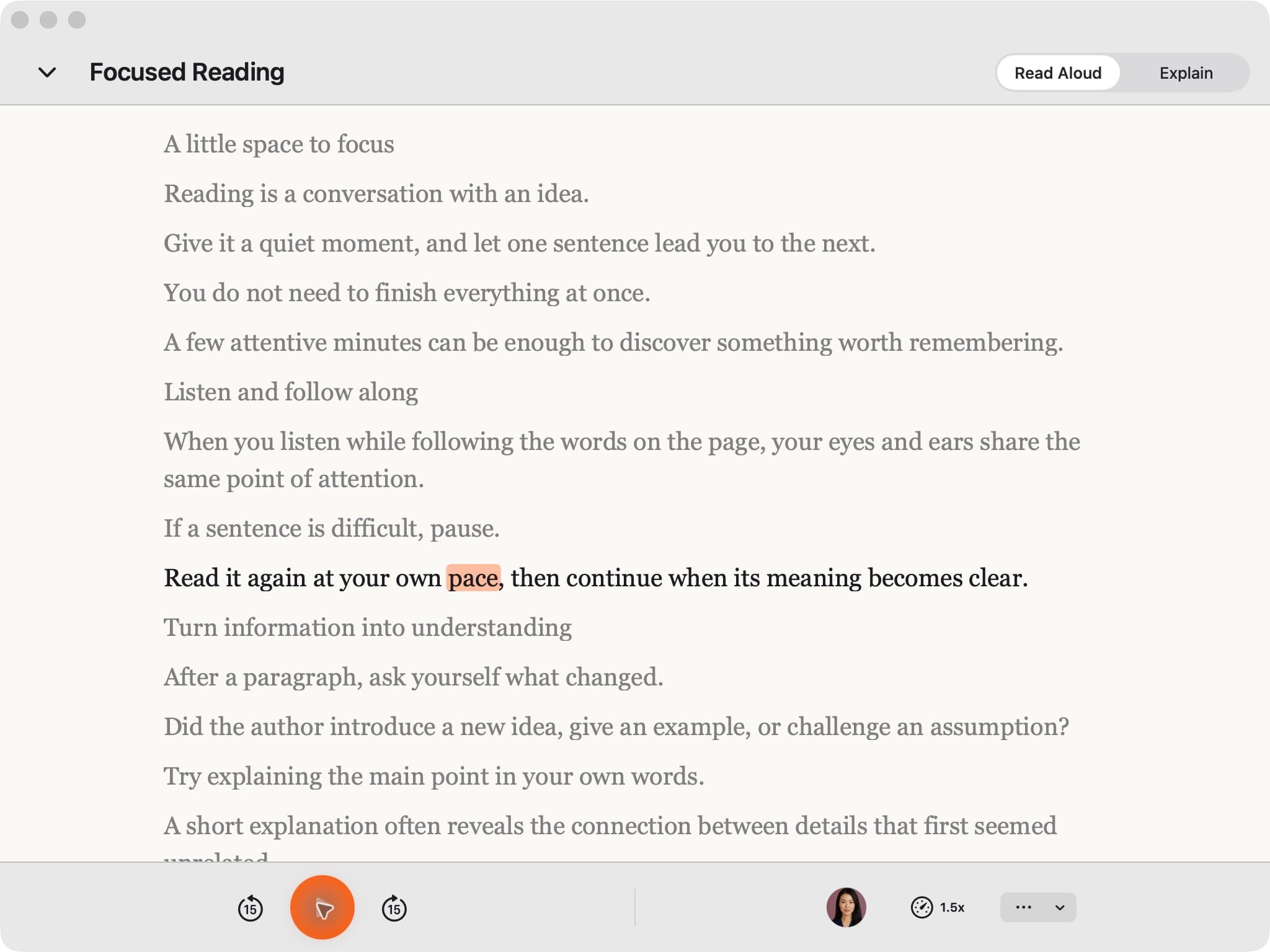
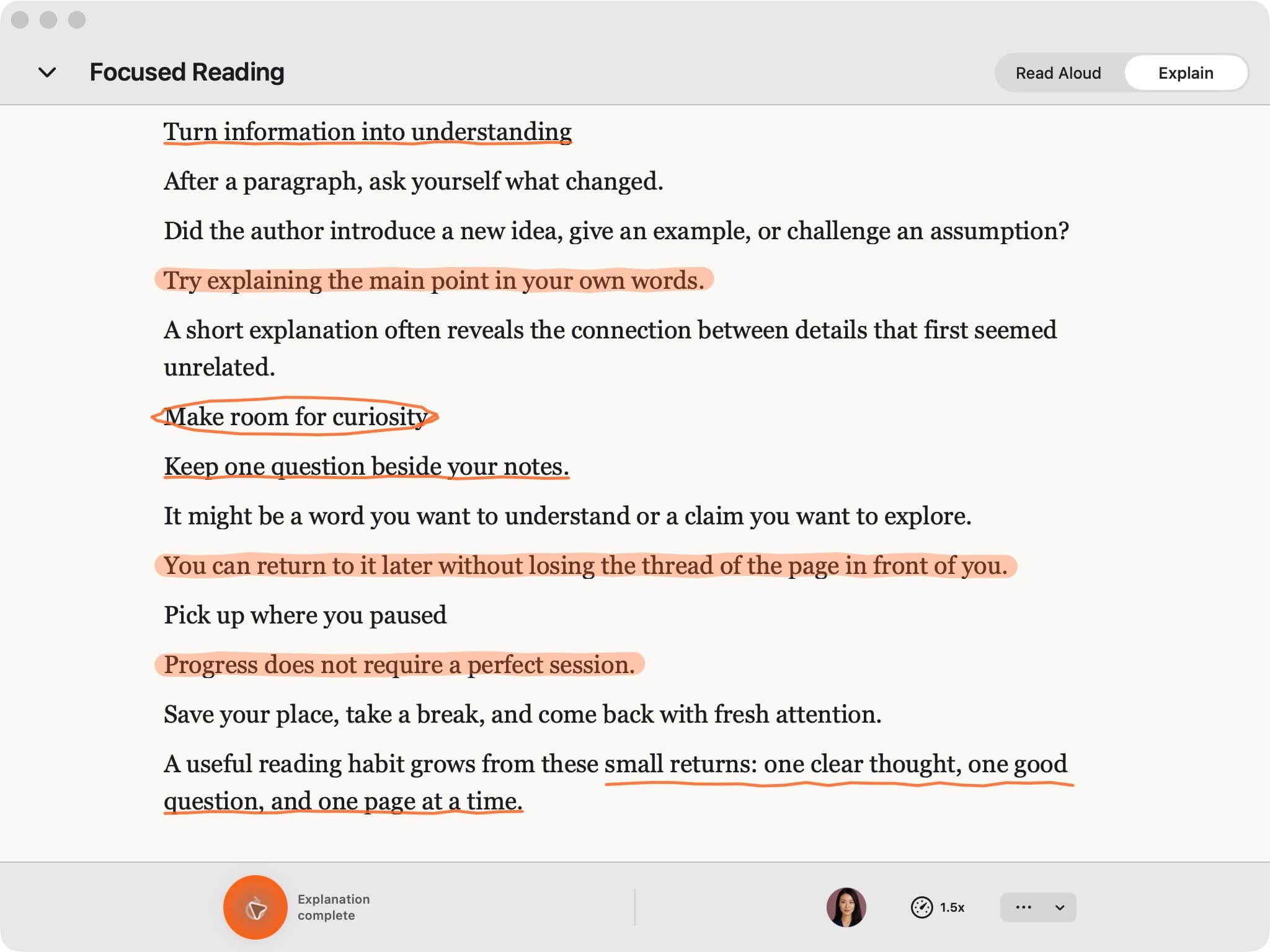
See the reading experience
Keep the words in view. Keep the idea in mind.
Real Mac app capture. Explore the meaning with Explain. Annotations keep the original passage in view.
CastReader brings speech, synchronized highlighting and scrolling together. When a passage needs more attention, pause and work through it.
01
Proofread an essay or proposal
Listen while looking at the text to spot repeated words, missing transitions and awkward sentence rhythm. Pause after each section and make deliberate edits in the original. CastReader reads the imported document; it does not accept or reject Word’s tracked changes for you.
02
Read long work documents
Use speech and highlighting together to stay with a lengthy brief, training document or report. Start with a manageable section. Take notes when the author introduces a decision, responsibility or unfamiliar term.
03
Understand a difficult paragraph
Use Read & Explain where available to work through a dense section in your chosen explanation language. Keep the original wording visible and check details against it. Explanation is a separate action from reading the document verbatim.
Word already includes reading features. Choose based on whether you want to stay in the editor or use a separate document-reading workflow.
In Word on Windows or Mac
In a supported Word version, open Review → Read Aloud and use the playback controls. This is a useful first choice when you want to hear the document while editing it in Word.
In Word for the web
Look under View → Immersive Reader. Microsoft’s reader provides its own text display and playback options. Features and voices depend on the Word version, account and device.
In CastReader
Import a DOCX to use CastReader’s reading view, available voices and explanation workflow alongside your PDFs and other reading. You do not need a Word installation to open a supported DOCX in the web reader.
Check your Word version and Microsoft’s instructions for that device. Word desktop, web and mobile have different menus. If you have a DOCX copy, you can open it in CastReader without relying on that button.
My file ends in .doc
The CastReader workflow described here uses DOCX, not the older binary DOC format. Open the file in Word or a compatible editor and save a DOCX copy before importing it.
I changed the original, but the reader still shows the old text
An imported DOCX is a snapshot. Save and import the updated file. Check comments, tracked changes, text boxes and tables in Word itself when reviewing the complete editorial state.
Microsoft Word Read Aloud: questions answered
How do I turn on Microsoft Word Read Aloud?
In a supported desktop version of Word, open Review → Read Aloud. In Word for the web, use View → Immersive Reader. Microsoft’s controls vary by version and device. You can also save a DOCX and open it in CastReader’s document reader.
Can CastReader read Word documents aloud?
Yes. Import a supported .docx file into CastReader on the web, Mac, iPhone, iPad or Android, then choose a voice and start playback. The reading view highlights the current passage so you can follow along.
Do I need a Microsoft 365 subscription?
You do not need a Microsoft 365 subscription to open a supported DOCX in CastReader’s web reader. Microsoft’s own Read Aloud features have their own availability requirements. CastReader’s cloud AI voices and Pro features follow CastReader’s plans.
Does CastReader work inside the Word desktop editor?
The route described here imports your saved DOCX into CastReader. It is not a Word ribbon add-in and does not highlight the live Word editing window. Make edits in Word and re-import the updated copy when needed.
Can it read .doc files, comments and tracked changes?
Save older .doc files as DOCX first. Imported reading text is not a complete review of Word comments, suggestions or tracked changes. Check those in the original editor, and verify complex tables and text boxes before a long reading session.
Is there a free Word text to speech option?
CastReader’s web reader can read supported DOCX files with an available on-device voice, without an account. Sign in for cloud AI voices and AI Explain. Free AI allowances and Pro limits are listed on the pricing page.
Can I listen to Word documents on my phone?
Yes. Save a DOCX file and import or share it into CastReader on iPhone, iPad or Android. Keep the document visible to follow the highlighted passage. The mobile app does not require a desktop browser extension.
Start with one page.
Choose your reading route, try a passage and keep the original in view.
Updated October 21, 2026 · CastReader product team · Voice, extraction and highlighting support vary by client, language and source. CastReader is independent of Google, Microsoft, Adobe and Amazon. Their product names identify the reading sources discussed here.