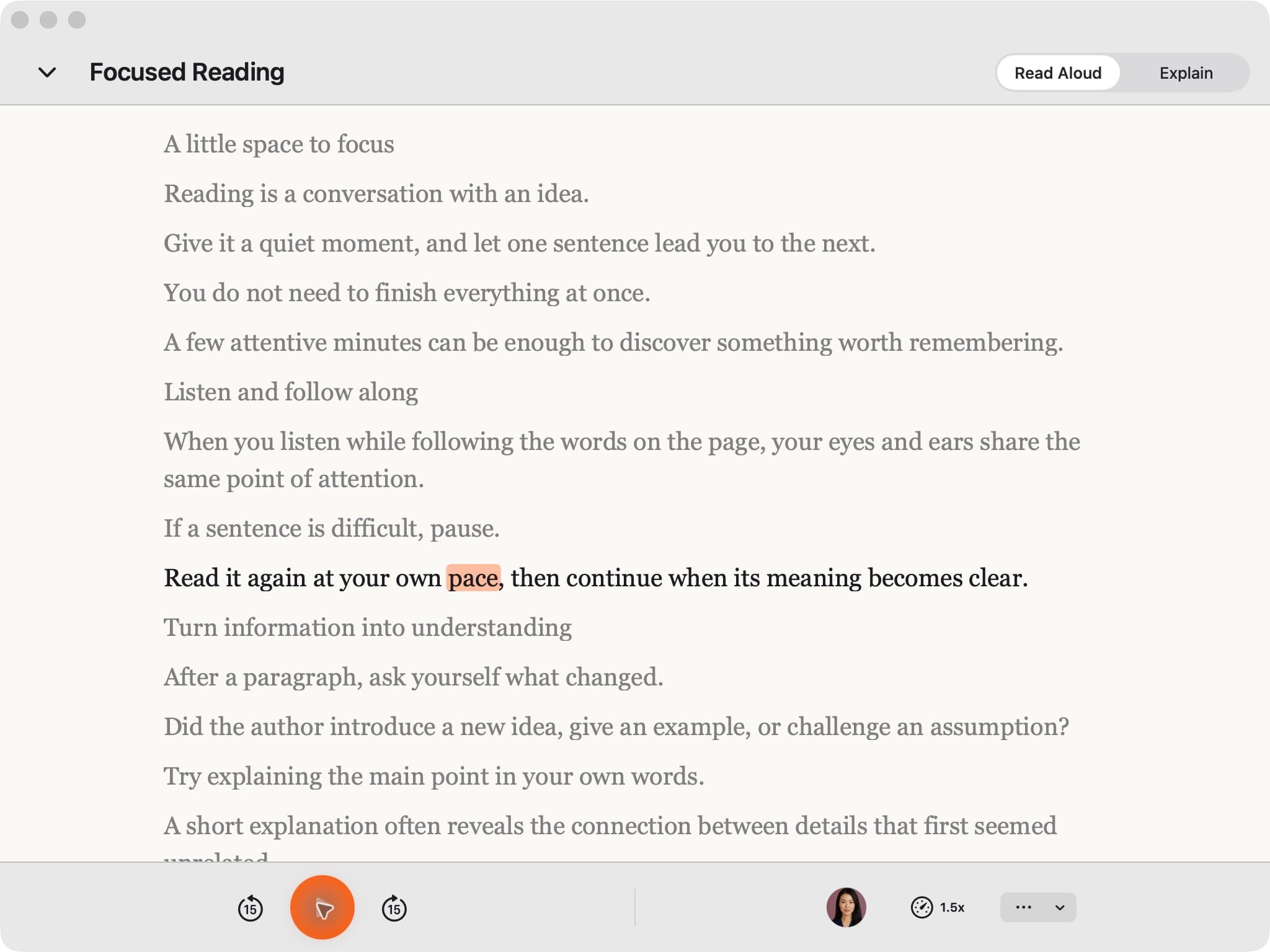
Stay with your Google Docs document as CastReader reads it aloud. Follow the highlighted paragraph, catch awkward wording in a draft, and work through a long document without moving the text into a separate speech box.
Real CastReader captures · Mac + iPhone reading examples. App route uses an exported DOCX or PDF.
A focused reading session
How to start with CastReader
Open your Doc
Hear the words
Follow along
Explore an idea
01
Install and open your document
Add CastReader to Chrome or Edge on your computer. Reopen the Google Doc after installation, sign in to Google as usual and wait until you can see the text you want to read.
02
Start Read Aloud
Click CastReader and choose Read Aloud. Start with a short paragraph to check that the spoken text and highlighted passage match the document. Choose an available voice and comfortable speed.
03
Keep reading in context
Follow paragraph highlighting and automatic scrolling in supported document views. Pause to edit a sentence or examine a table. After substantial edits, restart reading so CastReader uses the updated page.
See the reading experience
Keep the words in view. Keep the idea in mind.
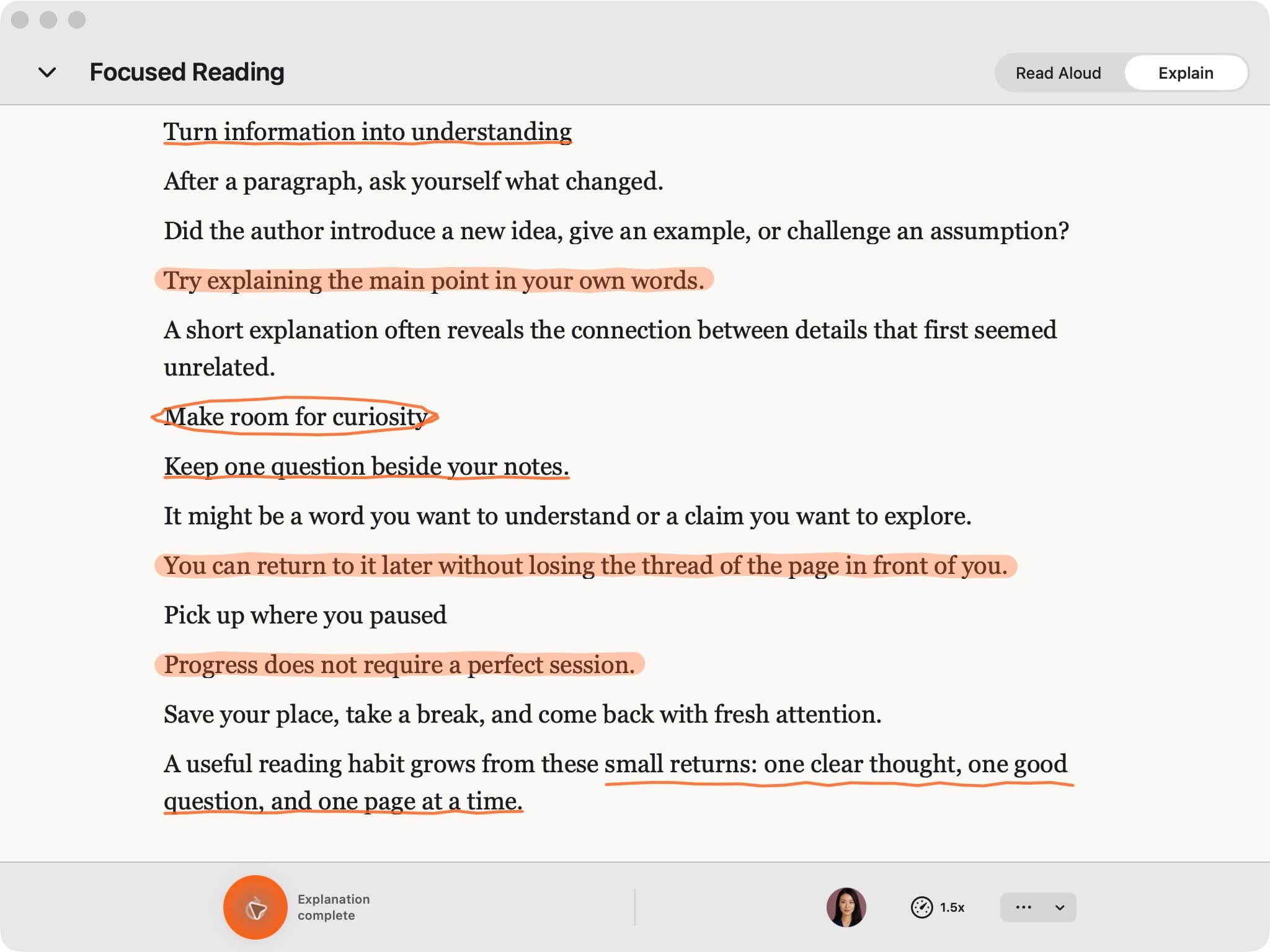
Real Mac app capture. Explore the meaning with Explain. Annotations keep the original passage in view.
CastReader brings speech, synchronized highlighting and scrolling together. When a passage needs more attention, pause and work through it.
01
Hear your draft before you share it
Read along with your proposal, application or essay. Spoken text can make repeated phrases and missing words easier to notice. Pause, edit the original and replay the passage to check how the revised sentence sounds.
02
Stay with a long shared document
Use synchronized speech, highlighting and scrolling to keep your attention on the same paragraph. Work in sections, particularly when a document contains multiple tabs, embedded content or large tables.
03
Explain the part that slows you down
Read & Explain is a separate CastReader action for understanding available source text. It can talk through a difficult passage in your chosen language while you refer back to the original. Review explanations against the source.
Yes. Google offers document audio on eligible Google Workspace or Google AI plans. CastReader is another route when you want its reading workflow or your account does not expose that menu.
Google’s document audio
On a computer, check Tools → Audio → Listen to this tab. Availability depends on your plan. Listening to a tab and generating an audio summary are different actions.
CastReader in the document
Install the Chrome or Edge extension and read accessible document text with paragraph highlighting and scrolling. Standard read-aloud includes a daily free allowance; additional voice access and higher limits require Pro.
An external screen reader
Google Docs also supports accessibility workflows with screen readers. Those settings and navigation commands are separate from Google’s audio menu and from the CastReader extension.
Open the document in its own Google Docs tab, reopen it after installing the extension, and wait for the body to load. Start from the document itself rather than a Drive preview or embedded view.
Reading stops before the end
Check whether later sections have loaded and whether you are in the intended document tab. Long documents, tables and comments need their own checks. An exported DOCX or PDF can provide a separate file-reading route.
Highlighting does not follow an edit
Pause before editing. After changing the structure or moving text, restart the reading session and verify a paragraph. Page layout and available text affect alignment.
Text to Speech Google Docs: questions answered
How do I use text to speech in Google Docs?
On a computer, install CastReader in Chrome or Edge, reopen your Google Doc and start Read Aloud. Eligible Google accounts can also use Tools → Audio → Listen to this tab. Choose the route that matches your account and reading workflow.
Does Google Docs have a built-in read aloud feature?
Yes. Document audio requires an eligible Google Workspace or Google AI plan. Check Google’s official audio instructions. A missing menu can be an account-availability issue, rather than a broken document.
Can I read Google Docs aloud on iPhone, iPad or Android?
Export or send a DOCX or PDF copy from Google Docs, then import it into the CastReader app. This reads the saved copy inside CastReader; it does not add the desktop extension to the native Google Docs mobile app.
What is free, and when is an account required?
Standard extension read-aloud includes 20 free minutes per day. Premium voices, higher allowances and speeds above 1.25× require account-linked Pro. The separate web file reader also offers on-device voices without an account. See current plans.
Does my Google Doc text leave the browser?
AI read-aloud sends text to cloud services, including text prefetched for upcoming audio. AI Explain also processes the relevant content in the cloud. Use a workflow permitted by your organization for confidential documents.
Does CastReader highlight the Google Doc as it reads?
Supported desktop document views show paragraph highlighting and scrolling alongside speech. Loading, complex layouts and edits can affect positioning. Start with a short passage and check that it matches the source.
Does it work with shared Google Docs?
You must already have permission to open the document. Managed-browser policies, export restrictions and document loading can affect the available route. CastReader does not bypass those permissions.
Can it read every tab, comment, table or Google Slide?
Do not assume that every document tab, comment or off-screen section is included. Verify the part you need. Google Slides and Sheets use different structures, so Docs support does not establish complete support for those applications. See Google Docs reading troubleshooting.
Start with one page.
Choose your reading route, try a passage and keep the original in view.
Updated October 21, 2026 · CastReader product team · Voice, extraction and highlighting support vary by client, language and source. CastReader is independent of Google, Microsoft, Adobe and Amazon. Their product names identify the reading sources discussed here.